Git Branch Commands
Git branches allow developers to work on different features or fixes without affecting the main project. Below are the most common commands used to manage branches.
List Existing Branches
git branchDisplays the list of branches that have been created in the repository.
The current branch is marked with *.
Example:
* main
  feature-login
  bugfix-header
Create a New Branch
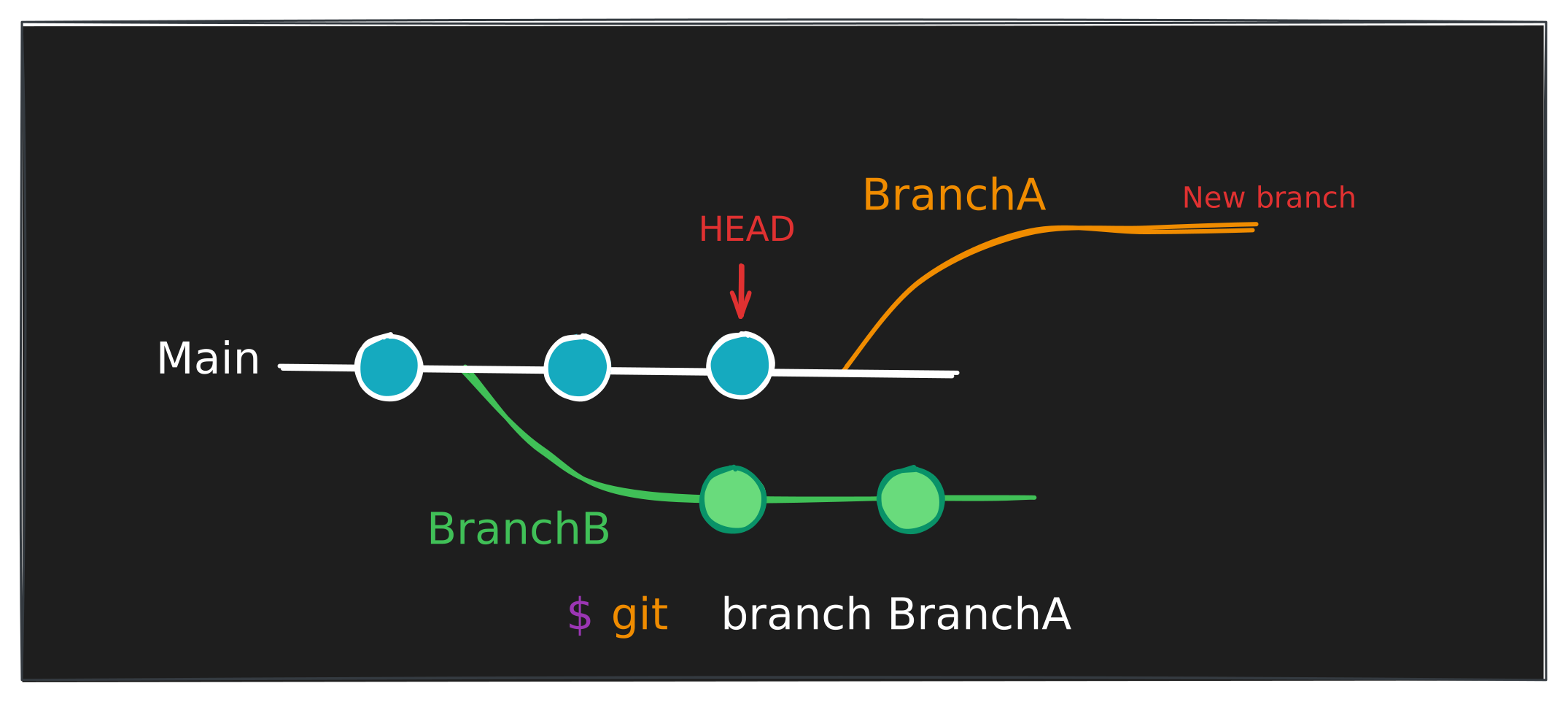
git branch branchACreates a new branch called branchA if it does not already exist.
Switch to a Branch
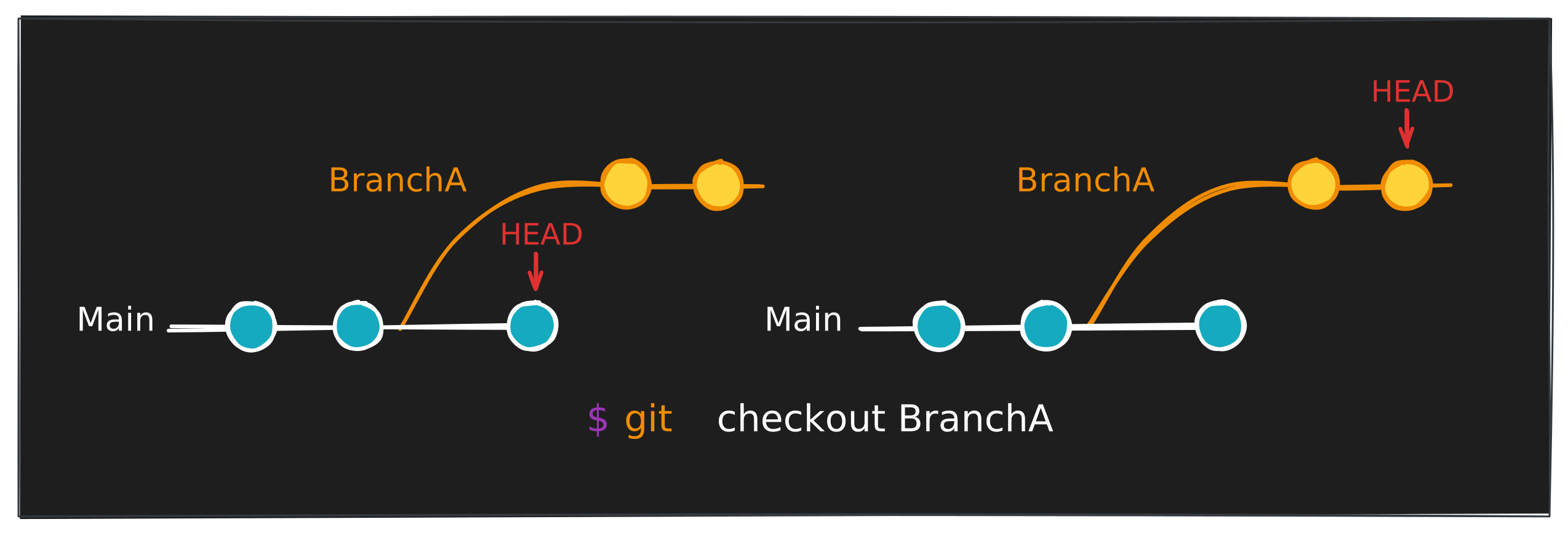
git checkout branchAMoves the working directory to the branchA branch if it exists.
Create and Switch to a Branch
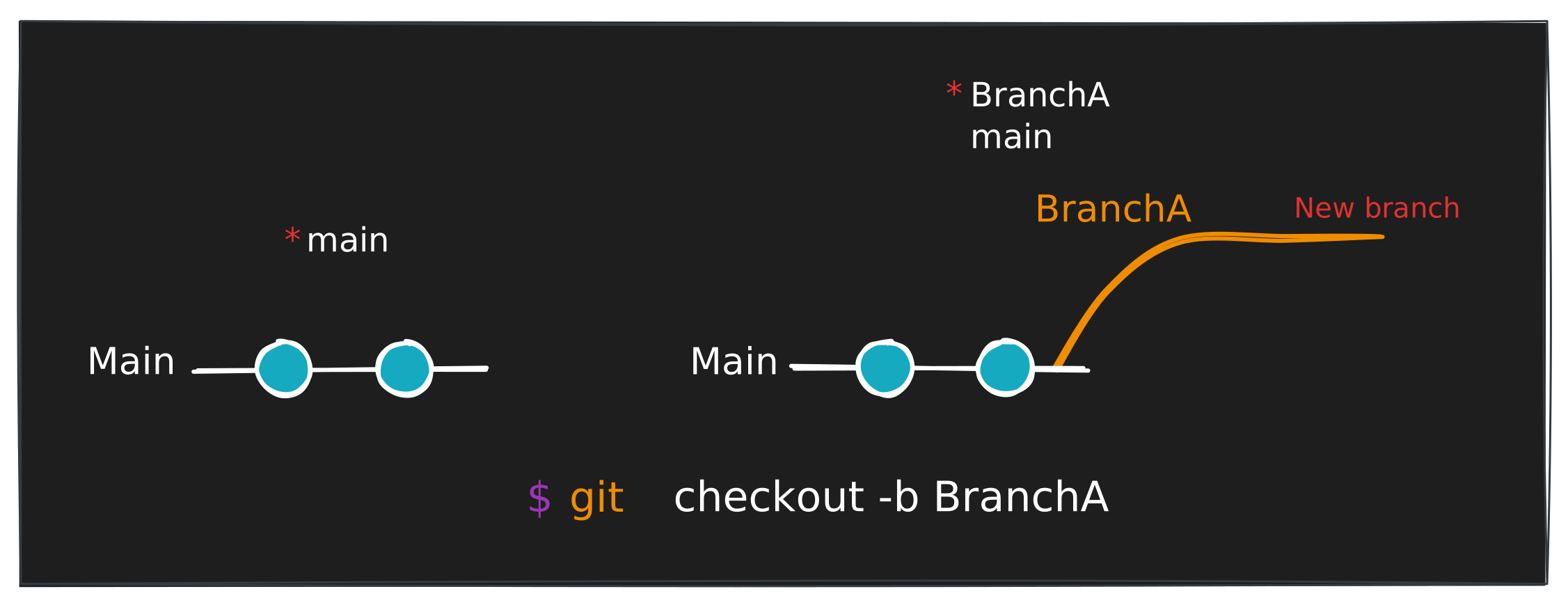
git checkout -b branchACreates the branch branchA and immediately switches to it.
Create or Reset a Branch
git checkout -B branchACreates the branch branchA if it does not exist. If it already exists, Git resets the branch and switches to it.
Rename a Branch
If you made a mistake when naming a branch:
git branch brachA # bad name
# You can rename it with:
git branch -m brachA branchA
This command renames the branch from brachA to branchA.
Delete a Branch
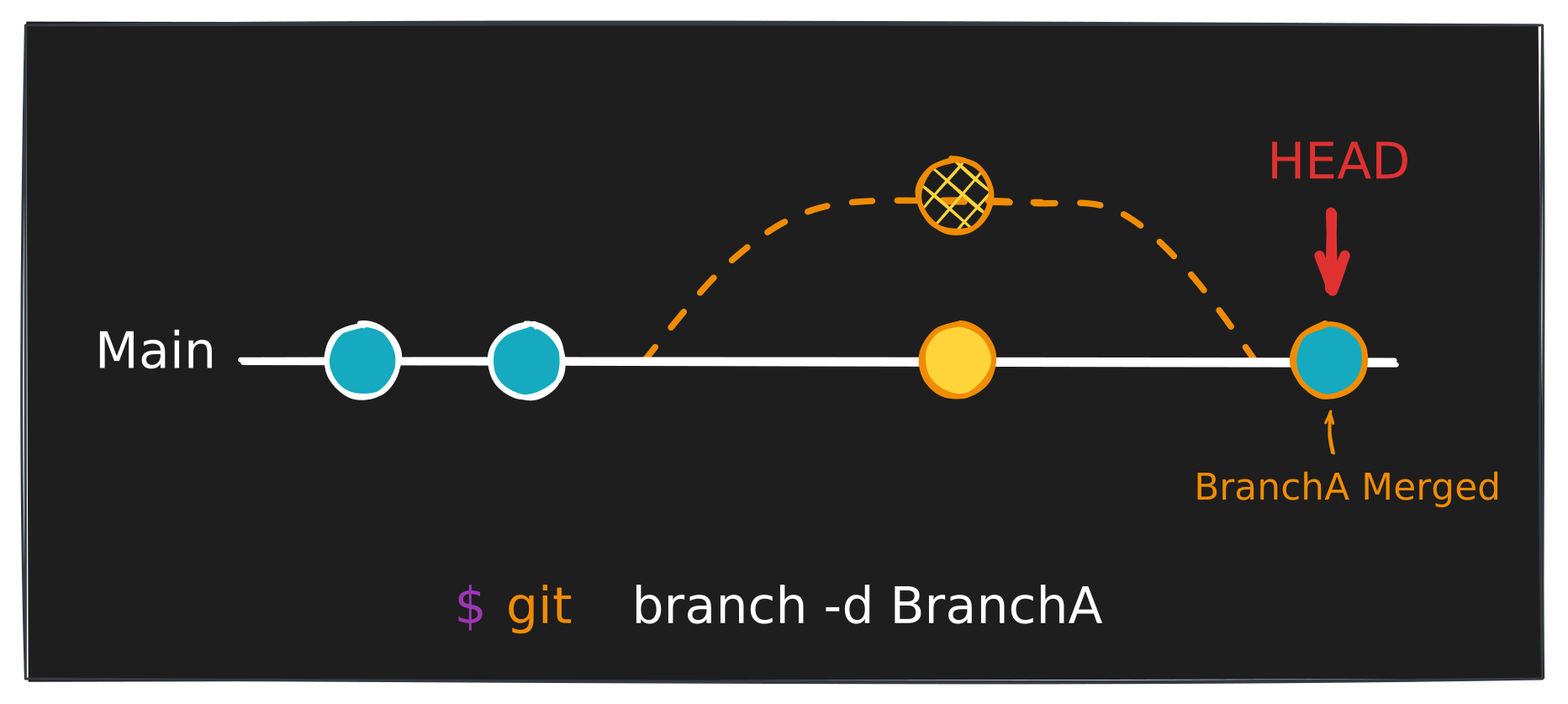
git branch -d branchADeletes the branch branchA if it has already been merged.
Git will delete the branch because its changes already exist in another branch.
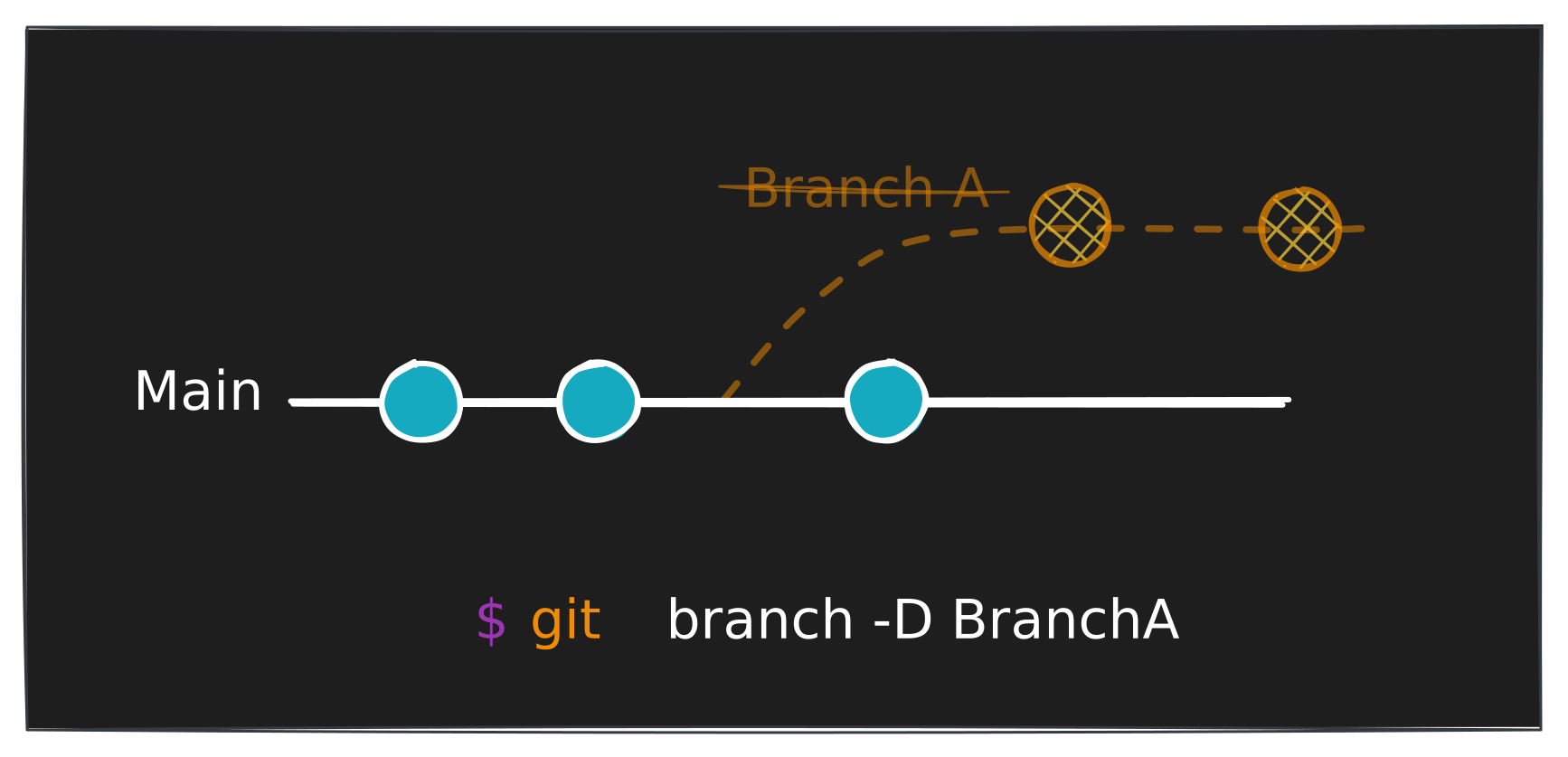
Force Delete a Branch
git branch -D branchAForces the deletion of the branch even if it contains unmerged changes.
Be careful : Unmerged commits will be lost.
Summary
| Command | Description |
|---|---|
| List all branches |
| Create a new branch |
| Switch to a branch |
| Create and switch to a new branch |
| Create or reset a branch and switch to it |
| Rename a branch |
| Delete a branch (only if merged) |
| Force delete a branch |